Utilities
•  Greatis •  Security •  AppDatabase •  Delphi/CB •  Visual Basic • .NET •  just4fun
Windows Utilities
All you need to improve your Windows
Main features
Main features
  • Simple poster printing
  • 4 image print modes
  • Printing on multiple pages
  • Visual split control
  • Saving partial files
  • Advanced preview

    More info
  • Full-size screenshots
  • License Agreements
  • Download
  • Ordering

    Follow us
    LinkedIn Blogspot Twitter Facebook

    Share this page

    Home Screenshots License Download Order Support  
    Poster It!
    Print your photos and images on multiple pages
    for Windows 95 - Windows 7

    Poster It! is an image print utility that allows printing of your image on multiple pages by simple steps:

    Run Poster It!

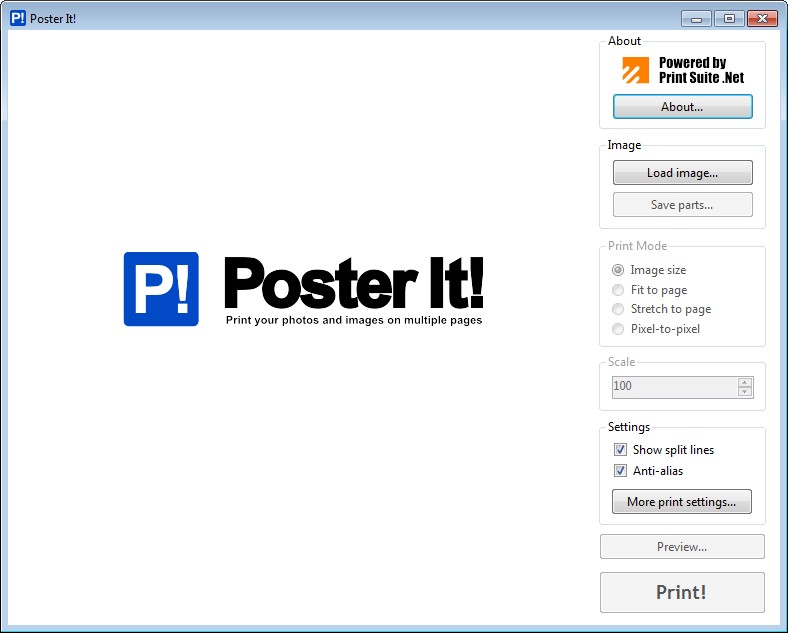
    Poster It! start screen


    Load image by clicking on the "Load image..." button, by clicking on the program logo or by dragging file from Explorer.

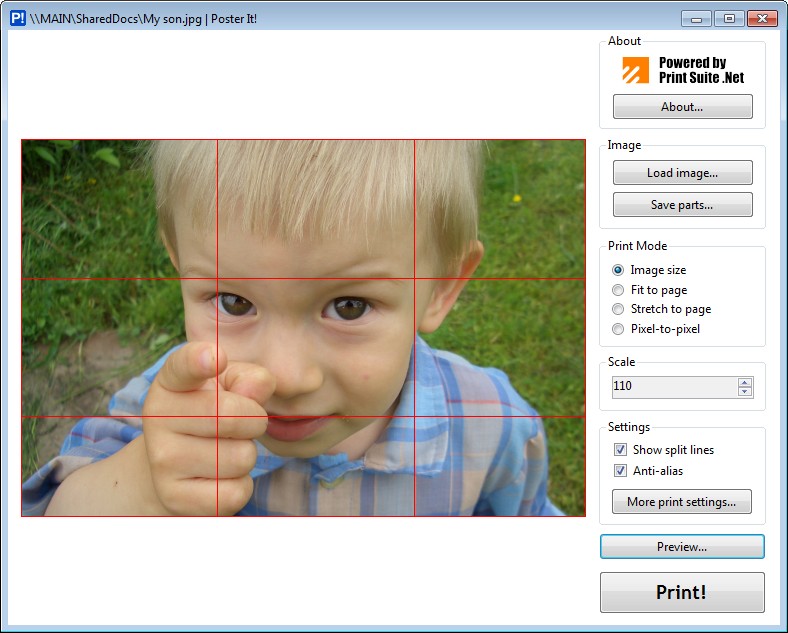
    Poster It! with loaded image


    Setup your printout as you need with the "Print mode" and "Scale". The "Image size" mode allows multipage printing, so if your image is too large for printing on the one page, it will be split and printed on several page. By default, "Image size" mode prints image in its native resolution using image size and DPI of image and printer, but you can change the target size with the "Scale" parameter. This parameter works for the "Fit to page" mode too. 100% is size of image fitted to page, when "Scale" is more than 100% in this mode, the image will be clipped. The "Stretch to page" mode stretches image to entire page with potential proportional distortions. The "Scale" parameter is not used in this mode. "Pixel-to-pixel" mode prints the image in the printer resolution. If printout has multiple pages, the image display grid that shows how image will be split. The "Print settings..." button calls standard print settings windows.

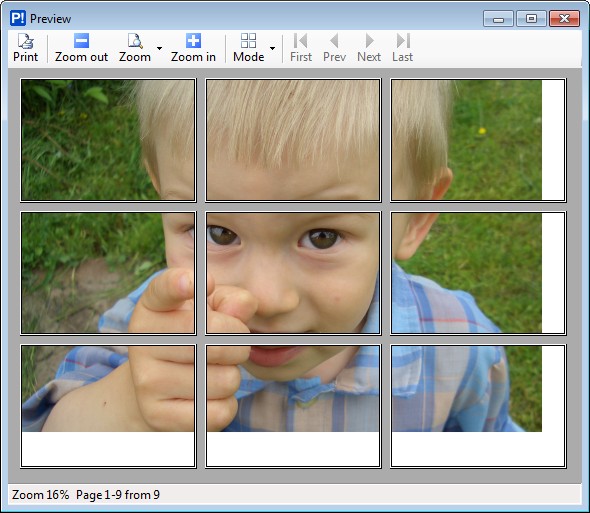
    When you printout is ready to print, you can print it immediately with "Print!" button or preview it by clicking on "Preview..." button. Preview window has "Print" button too, so you can run printing from the preview window.

    Poster It! preview window


    In this example I'm printing photo of my son in multipage mode to get large image on 9 A4 pages. I have set the page margins to 0 and set the "Scale" value to 110% to better fit width of 3 pages. My printer can print without margins, so I had to cut off only bottom edge. After it I just use Scotch tape on the reverse side and now I have large poster 34 x 20 inches!

    If you have not printer right now, no problem - you can save parts of split image. Just click the "Save parts..." button, choose target folder and you'll have all the image parts in separated files.

    Are you developer?
    Print Suite .Net Image Print Wizard is powered by
    Print Suite .Net - complete solution for printing text, images and grids from within you WinForms .Net applications. Included document designer allows creating complex documents from simple ready-to-use context providers without manual coding.

    Greatis Software Greatis | Security | AppDatabase | Utilities | Delphi/CB | Visual Basic | .NET | just4fun

    Contacts | Add to Favorites | Recommend to a Friend | Privacy Policy | Copyright © 1998-2012 Greatis Software

    eXTReMe Tracker