File Protection
File Protection is one of the most useful functions serving to protect your computer from viruses, Trojans and malfunctioning programs. We strongly recommend that you the run file protection setting immediately. The sooner you do it, the greater the troubles you can avoid.
How do these troubles arise?
When you receive an email message, containing an interesting screen saver or an executable file, you can't help opening it. Of course, it may turn out to be a virus or a Trojan. Every virus tries to ensure its activity and life-support after the computer is re-started. RegRun is reliable in locating all the programs that try to launch automatically when Windows is starting. Unfortunately, a virus can use the techniques of system files substitution (DLL).
It most certainly will.
File wininit.ini(Windows 95/98) and registry key PendingFileRename (Windows NT/2000/XP/Vista) are employed to substitute files, permanently used by Windows.
Be sure to mark "Check wininit.ini" checkbox in the Control Center, Options, Secure Start.
File Protection uses another protection technique.
The protected file is saved in the folder RegRun2\Files.
Check the box named "Enable File Protection" and activate the "Secure Start" option.
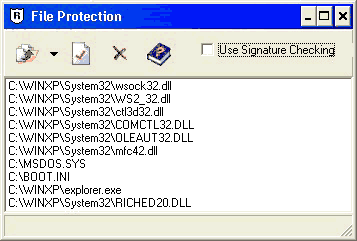
To select files, press the "Tune File Protection" button.
You can add any files for protection. We suggest you protect the most vital ones. Press the arrow button and select files in the scroll menu.
RegRun supports full file comparison or signature checking. If you check the box "Use Signature Checking" RegRun makes an MD5 signature of the source file and saves it. While comparing, it compares the original signature with a calculated signature. When you select an item in the list, you will see the current signature, if it is assigned. To apply a signature to a currently protected file, you must remove it from storage, check the "Use Signature Checking" box, and then add it again. You can copy the signature to the clipboard and save it in its own location (use context popup menu). The MD5 signature is commonly used to check the integrity of files. You may use freely available MD5 utilities to make a signature and compare.
Recommended protection:
Viruses often use Winsock (Socket API for Windows). By substituting Winsock, any virus can get control over your Internet access and do whatever it wants.
CTL3D 3D Windows Control Library, Common Controls library, Microsoft OLE library, MFC42 DLL lots of programs by exterior implementers try to substitute these libraries to provide their own working efficiency. Yet, as a rule, these programs don't check versions of libraries and substitute them anyway, even if a newer and better working version is already installed. As result, Windows operates slowly and/or malfunctions. Errors may appear while downloading and it may misrepresent some of the elements.
MSDOS.SYS is an important file for Windows startup.
When it is missing Windows cannot launch at all. In this case the standard error "VMM32.VXD not found" occurs. MSDOS.SYS contains paths to your Windows folder. Our recommendation is to have a copy of the file to secure yourself.
Boot.ini is an important file for Windows NT/2000 startup or if several operating systems startup on one drive. Windows NT/2000 can't start when boot.ini is missing or contains errors.
How does File Protection work?
File Protection automatically runs simultaneously with Secure Start.
In Windows 95/98 we advise to use of Secure Start DOS. In this case you will be able to restore damaged files before Windows is launched.
It is necessary to restart your computer to restore files when using Secure Start Windows.
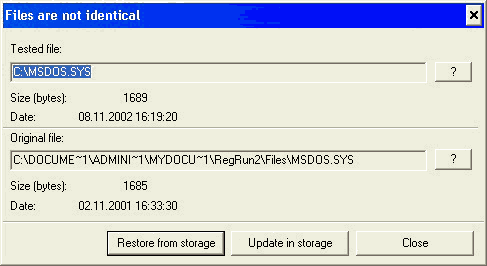
If any disagreement of files is detected, you will see a warning message. You can see the date and the size of both of the files. By pressing "?" you access scroll menu, that contains commands of this file. With the help of this menu you can scan the file for viruses, and copy, delete, rename or view it.
Press the "Restore from storage" button to restore the initial file. If you find it necessary to update the file in storage, press the "Update in storage" button. If you want to decide later, then press the Close button.